NFC Google review stands: do tap-to-review cards really work?
What an NFC Google review stand does, which phones can tap it, where it helps and where it doesn't, and how to use one without breaking Google's rules.
5 min read · Tapstand team
An NFC Google review stand is a small card or stand with a chip inside. When a guest touches their phone to it, Google's "write a review" box opens. No searching for your café, no scrolling to the reviews tab. Yes, they work, because they take away the steps where most people give up. But they only work if guests notice them, their phone can tap, and the stand is used in a way Google allows.
How a tap-to-review card works
Inside the card is a passive NFC chip with a web link written on it. The chip has no battery: the phone's own field powers it when it comes within about 4 cm. The phone reads the link and opens it in the browser, just like scanning a QR code. Most review cards also print a QR code for phones that can't tap.
- A plain review card has your Google review link written straight onto the chip. Tap, and Google opens.
- A page-based stand points to a page you control, which then shows a Google review button alongside other things guests want, like the menu or Wi-Fi.
Which phones can tap
| Phone | Taps the stand? | What the guest does |
|---|---|---|
| iPhone XS and newer | Yes, in the background | Unlock the phone and hold the top edge near the stand |
| iPhone 7 to X | Only with the NFC reader | Open the NFC tag reader from Control Centre, then tap |
| Most mid-range and premium Android phones | Yes, if NFC is switched on | Hold the back of the phone, near the camera, to the stand |
| Budget Android phones | Often no NFC chip | Scan the printed QR code instead |
That last row matters in India, where many guests carry phones without NFC or with it switched off. A review stand without a printed QR code turns those guests away. Always use both. Our NFC vs QR comparison goes into the details.
Where review stands help
- They cut the effort. Without a direct link, a guest has to open Maps, find you, scroll to reviews and tap Write a review. Each step loses people.
- They're a visible, standing ask. Staff don't need to remember to bring it up; the stand does it for every table, every shift.
- They suit the counter. At billing, one guest at a time is already holding their phone.
Where they don't
- Nobody taps a stand that only asks for a favour. A card that only says "Review us" competes with the guest's food and their conversation. It gets ignored more than you'd hope.
- Metal tables block NFC. A chip stuck flat on steel or aluminium often won't read. Use a stand that lifts it off the surface.
- A plain card can't change. If your Google link changes, or you open a second branch, a card with the link written on the chip has to be rewritten or replaced.
Get more taps by bundling the review ask
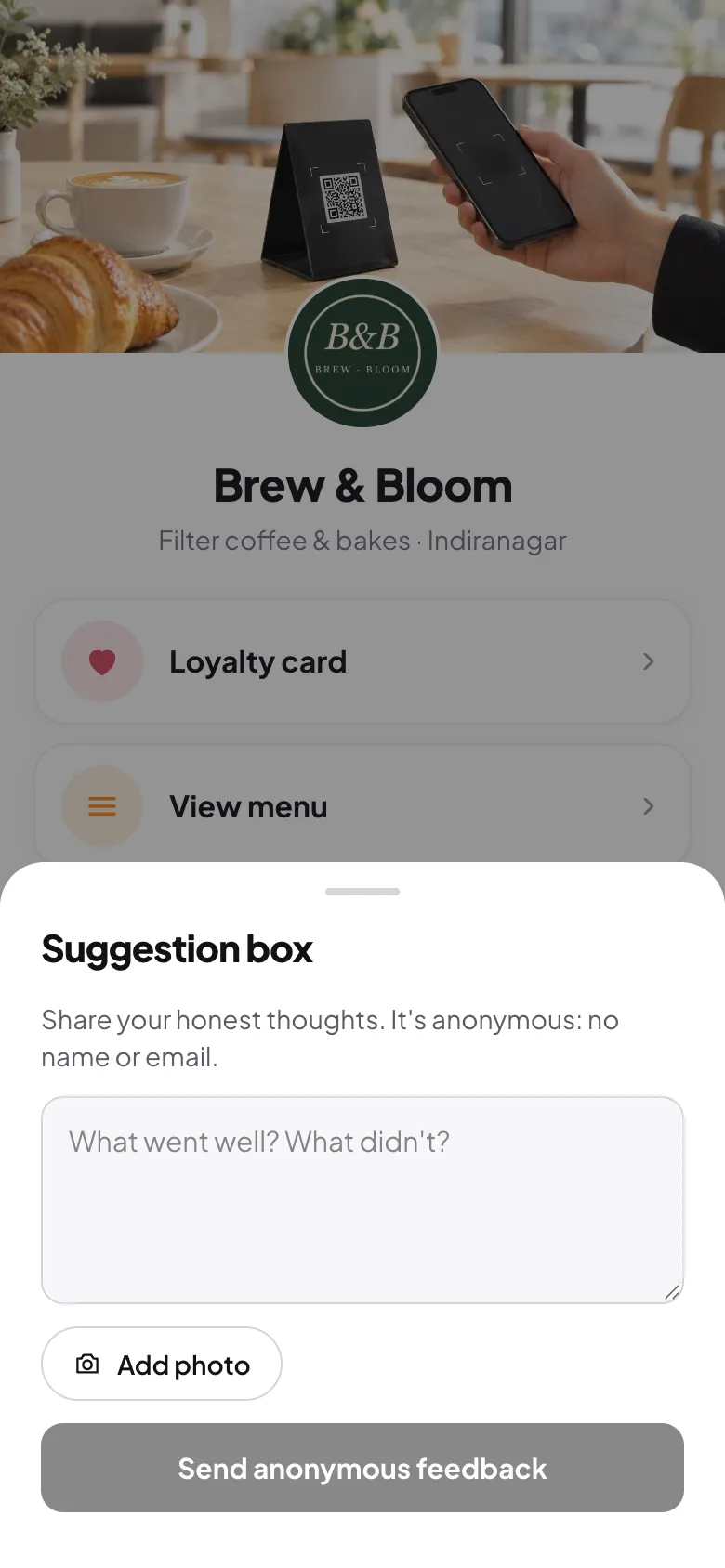
Guests tap a table stand for things they want: the menu and the Wi-Fi password. That's why a stand that opens your café's page usually gets far more taps than a review-only card. Once they're on the page for the menu, the Review us on Google button is right there, and they can use it after the meal, when they actually have something to say.
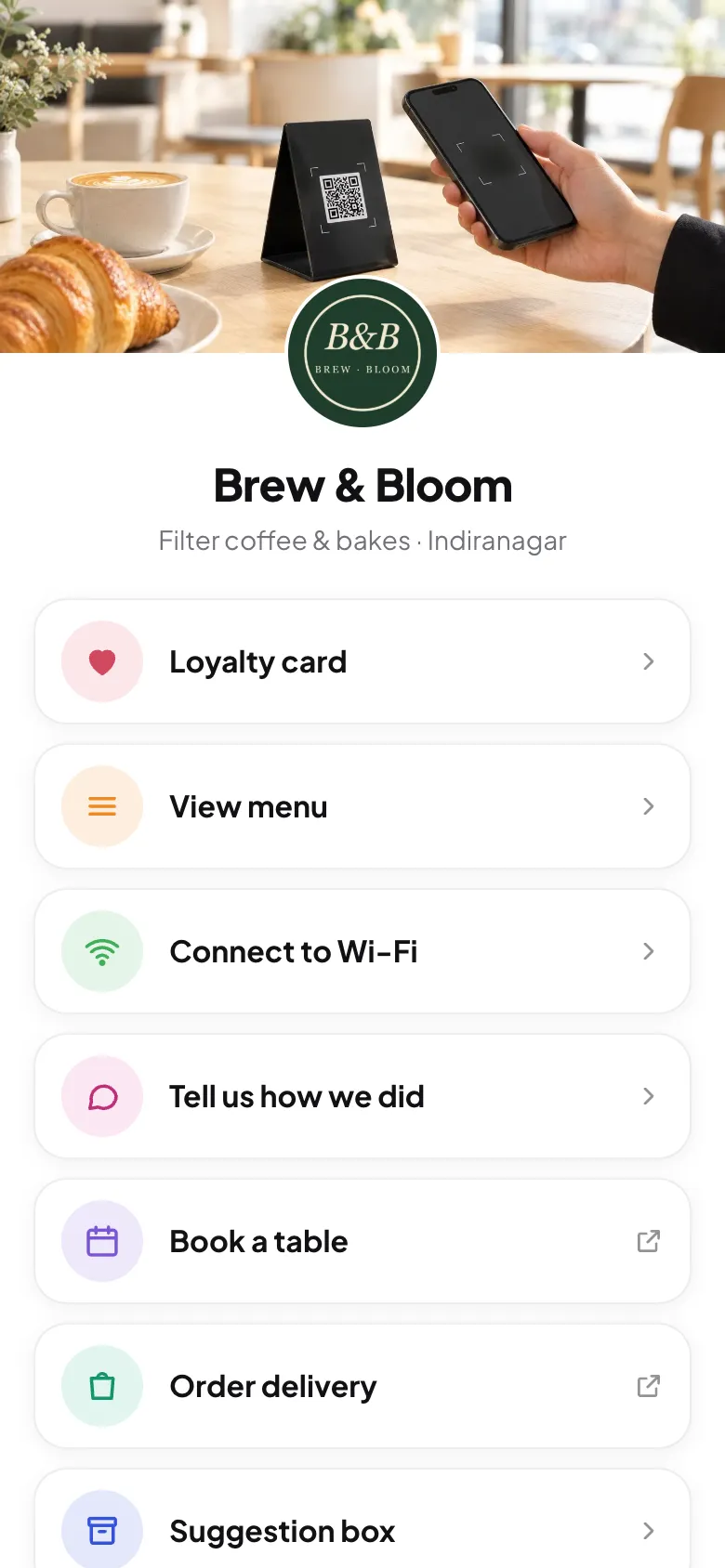
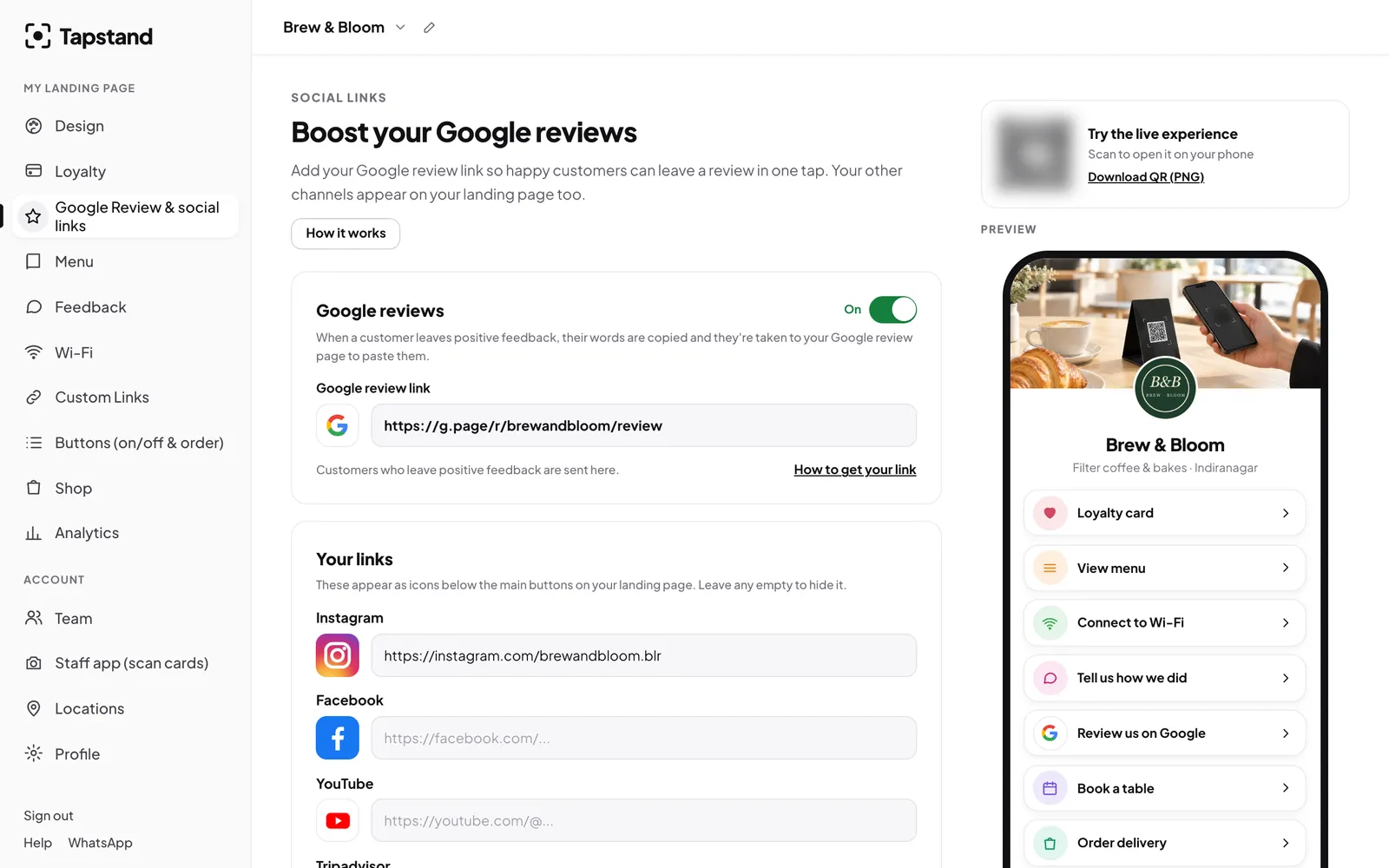
Because the stand points to your page, not to Google directly, you can change the review link, the buttons or their order from the dashboard without touching the stand.

Stay inside Google's rules
A review stand is just a link, and asking for reviews with a link, QR code or NFC tag is allowed. What gets reviews removed is how you use it. Google's policy prohibits:
- Rewards for reviews. No discount, free dessert or loyalty stamp in exchange for tapping, even for an honest review.
- Review gating. Showing the review option only to guests who rated you highly. Every guest should get the same ask.
- Pressure on the premises. Staff standing at the table until the review is posted.
- Staff quotas and staff names. Since April 2026, Google also bans review targets for staff and asking guests to mention a staff member by name.
Making a review stand work: a checklist
- Use NFC and a printed QR code on the same stand.
- Point it at an address you control, not straight at Google, so you can change it later.
- Write what the tap does: "Tap or scan for menu, Wi-Fi and reviews" beats "Tap here".
- Put it where phones already are: on every table and at the billing counter. See where to place stands.
- Brief your staff with one line: "If you enjoyed it, there's a review link on the stand." No pressure, no quotas.
- Reply to the reviews that come in. It's what makes the next guest bother. Our guide to handling negative feedback covers the hard ones.
- Check stands weekly for damage and for stickers placed over the QR code.
Tapstand's counter stands, domed table tags and acrylic stands all carry an NFC chip and a printed code, and open your café's page. You can set up your page free and see it on your own phone before ordering a stand.
Frequently asked questions
Do NFC Google review cards work on iPhone?
Yes. iPhone XS and newer read NFC tags in the background when the phone is unlocked. iPhone 7 to X need the NFC tag reader from Control Centre. A printed QR code covers everyone else.
Is it allowed to use an NFC stand to ask for Google reviews?
Yes. Google allows asking for reviews through links, QR codes and NFC tags. It's offering rewards, asking only happy guests, pressuring people or setting staff quotas that breaks the rules.
Do NFC review cards need a battery or app?
No. The chip is powered by the phone when it comes close, and the link opens in the phone's browser. Nothing to install.
Can I change where my NFC stand points?
Only if it points to an address you control, like your Tapstand page. A card with your Google link written directly onto the chip has to be rewritten or replaced to change it.
Sources
Screenshots show Tapstand with a sample café and demo data.