How to convert a paper menu to a QR code menu for free
Four free ways to turn a printed menu into a QR code menu, what each one costs you later, and a step-by-step setup from photo to printed code.
5 min read · Tapstand team
To convert a paper menu to a QR code menu for free, get your menu online as a web page or file, copy its link, and turn that link into a QR code you print for each table. The quickest free route is a photo or PDF of the menu behind a QR code. The better route, still free to set up, is a proper mobile menu built from your paper one, so guests aren't pinching and zooming at a photo.
Here are the four free options, what each one costs you later, and the steps to do it properly.
Four free ways to do it
| Option | Setup | What guests see | The catch |
|---|---|---|---|
| Photo or PDF of the menu in Google Drive | 10 minutes | Your paper menu, shrunk to a phone screen | Pinch-zoom on every page; every price change means a new file |
| Google Business Profile menu | 20 to 30 minutes | Your menu inside Google Maps | Only reachable through Google; no table QR code of its own |
| Free QR menu website | 30 minutes | A basic mobile menu | Many "free" QR codes stop working after a trial unless you pay |
| A menu builder (like Tapstand) | 15 to 60 minutes | A mobile menu with sections, labels and filters | Paid plans once you go live; check what's free |
1. Photo or PDF behind a QR code
Scan or photograph each page, upload the files to Google Drive, set sharing to Anyone with the link, and make a QR code from that link. It costs nothing and takes ten minutes. It's also the worst experience for guests: a printed A4 page squeezed onto a phone, with tiny text and slow loading on weak signal. Our QR code menu guide explains what guests expect instead.
2. Your Google Business Profile menu
Google lets you add menu items to your Business Profile, and can now build them from an uploaded photo. It's free and worth doing, because people search for menus on Google Maps. But it isn't a table menu: there's no QR code for the table and you can't control how it looks.
3. Free QR menu websites
Plenty of sites let you type in a menu and give you a QR code. Read the small print before you print anything. Many give you a dynamic QR code that points to their server, and it stops working, or shows ads, when the free trial ends. Once that code is on fifty tables, you're stuck paying.
4. A proper menu builder
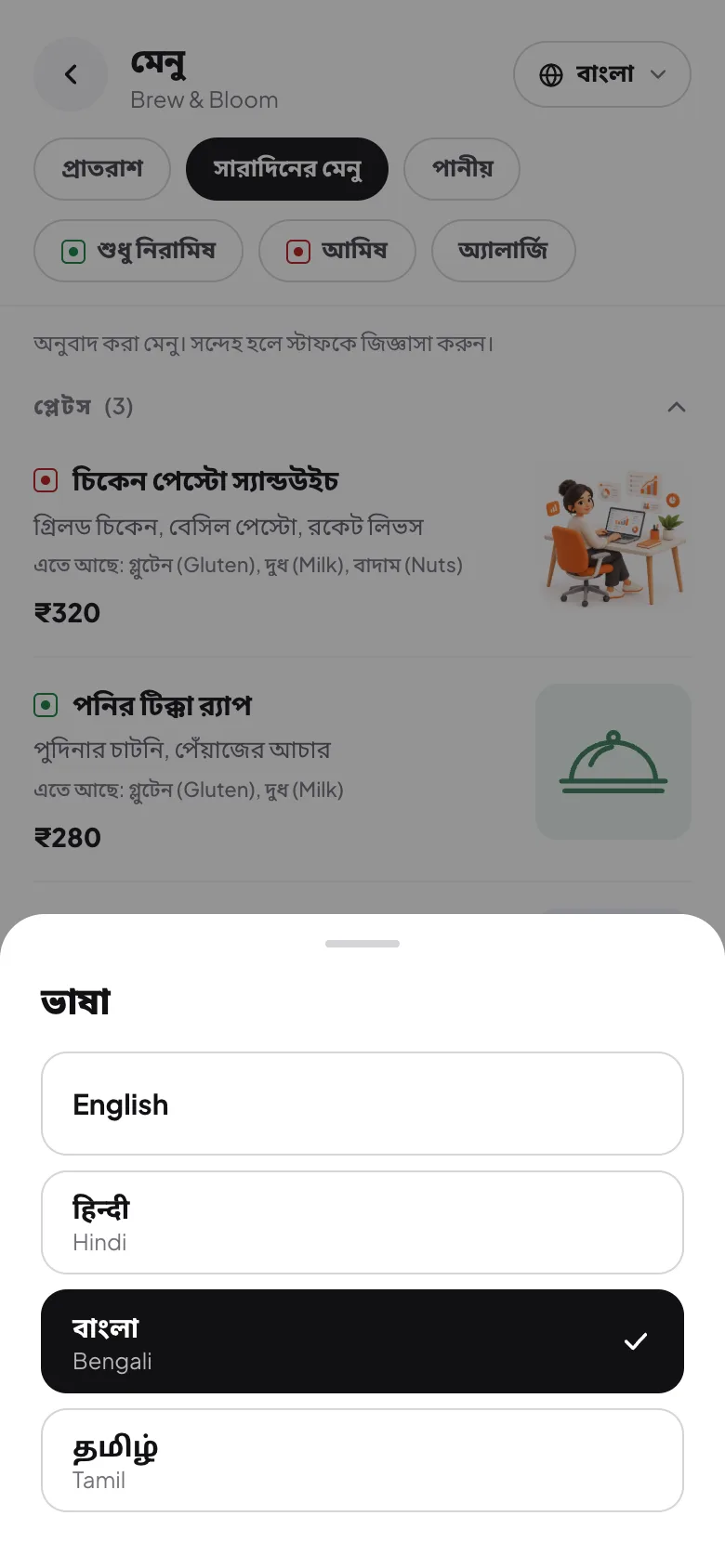
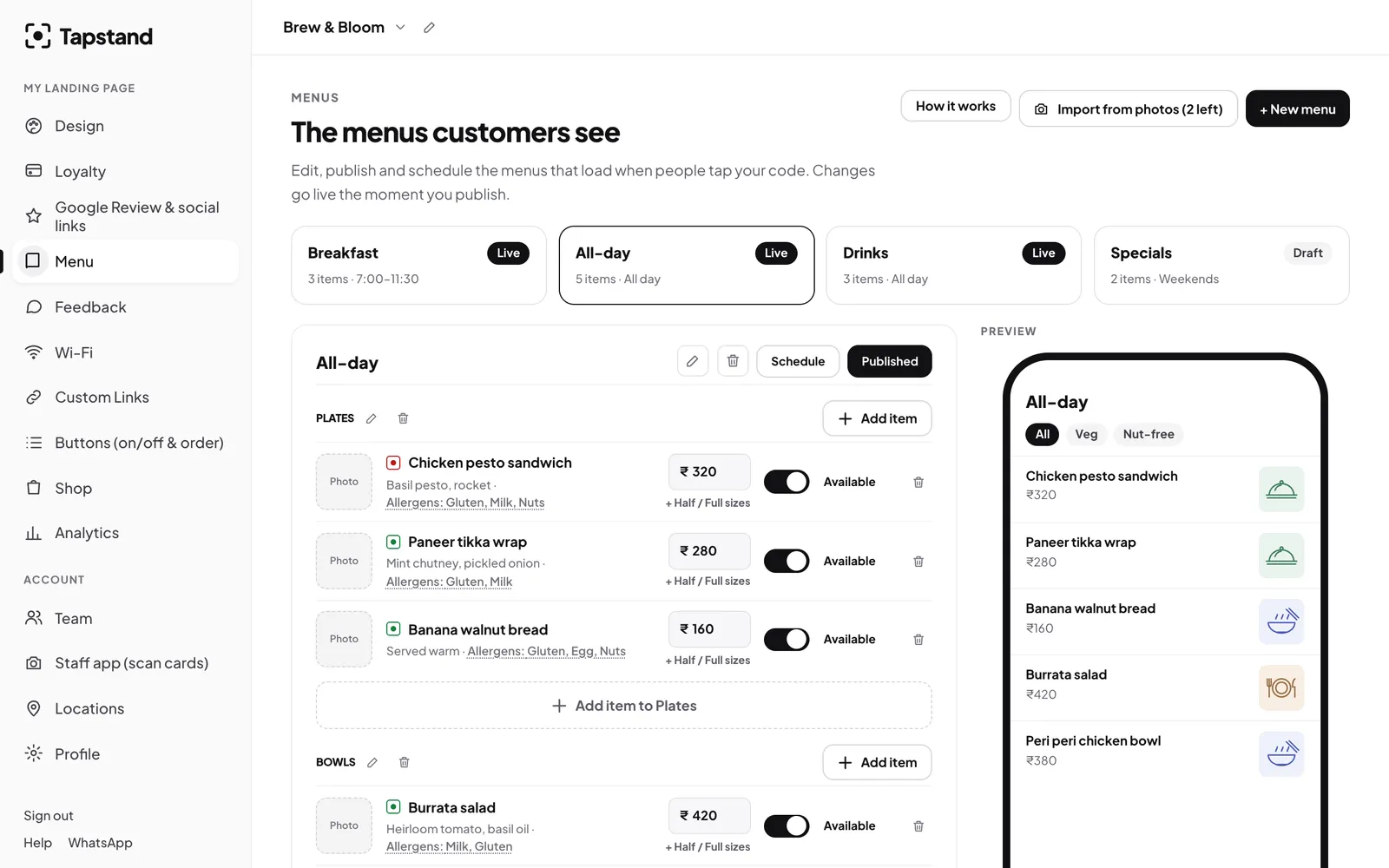
A menu builder turns your paper menu into a real mobile page: sections and tabs, prices, veg and non-veg markers, allergens and sold-out switches. With Tapstand you can build your menu and page free, see it on your own phone, and only start a one-month trial when you go live.
Step by step: paper menu to QR code menu
Step 1: Get the latest menu in one place
Collect the current printed menu, plus everything that only lives on the chalkboard or in the head chef's head: today's prices, half and full sizes, add-ons, and what's been crossed out with a pen.
Step 2: Get the dishes in
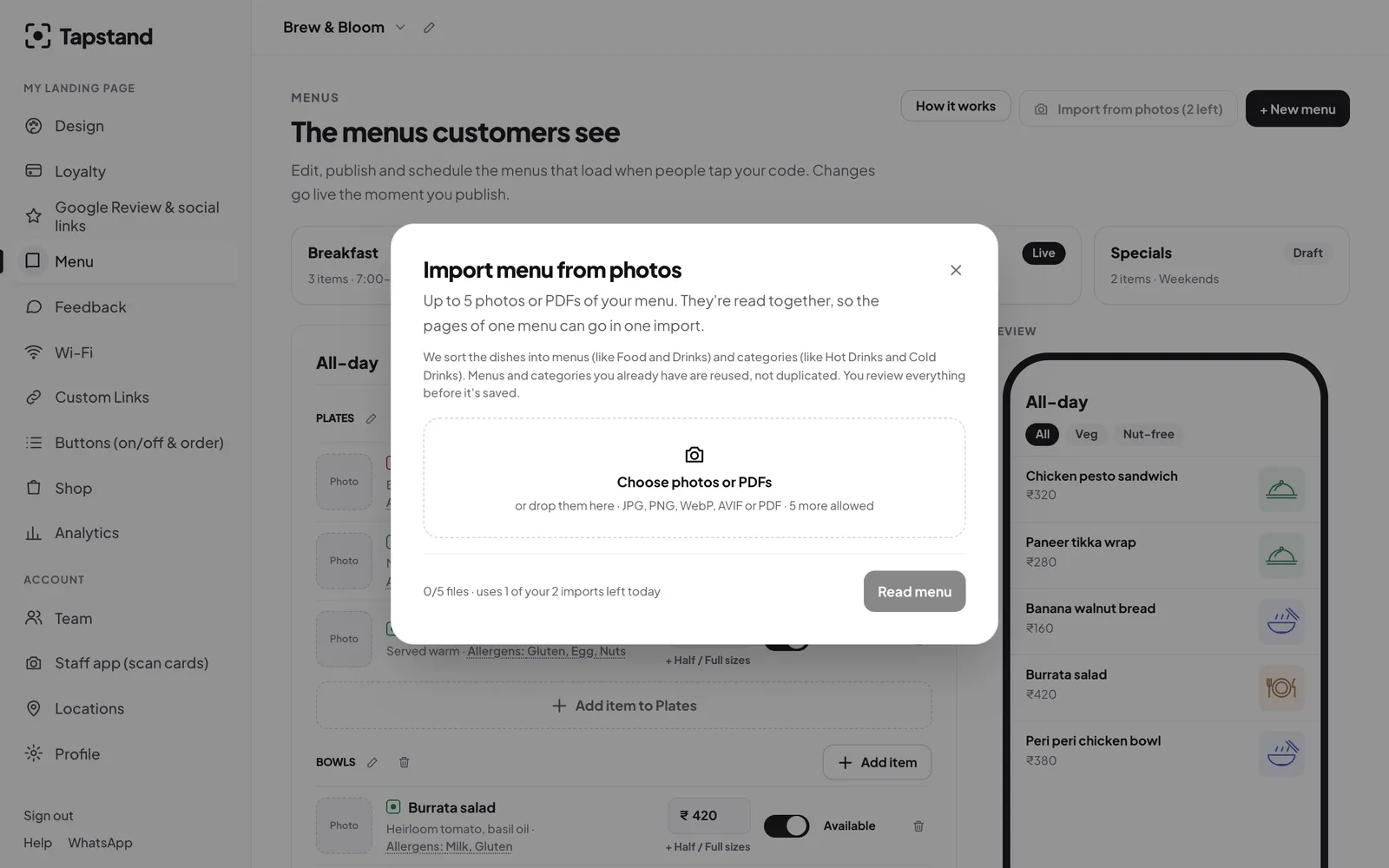
Type them in, or let AI read photos of the pages for you. Tapstand's menu import reads up to five photos or PDFs and gives you a draft to check (it's included in the Growth and Group plans). Our guide to importing a menu with AI covers how to photograph pages so they read cleanly.

Step 3: Fix the things paper got away with
- One dish, several sizes. "Half ₹130 / Full ₹220" is one dish with two prices, not two dishes.
- Veg and non-veg markers on every item, and allergens where they apply. See the FSSAI labelling guide.
- Short descriptions. One line per dish is plenty on a phone.
- Sensible sections. Nobody taps a section called "Others".

Step 4: Check it on a real phone
Open the menu on your own phone, on mobile data, not café Wi-Fi. Scroll the whole thing. Can you find the coffee in two taps? Can you read every price without zooming? Ask one regular to try it too.

Step 5: Print the QR code and place it
- Size: at least 2.5 cm across for a table; bigger on a wall or the counter. A rough rule is that people can scan from about ten times the code's width.
- Add a line of text: "Scan for menu" tells people what they'll get.
- Contrast: dark code on a light background. Fancy colours can stop it scanning.
- Test every print with an iPhone and an Android phone before it goes on a table.
Then put it where guests will see it the moment they sit down. Our guide to placing table stands has the details.
Keep your paper menus anyway
Keep a few printed copies for guests who'd rather not use their phone, older regulars, and the day the internet goes down. The QR menu is the one you update every day; the printed copies only need reprinting when something big changes.
What changes once it's online
The real saving isn't the first conversion. It's every change after it. A price rise, a new dish or a sold-out special goes live the moment you save, with no reprint. You can run breakfast and all-day menus on the same code, switched by time, as covered in scheduling menus.
Frequently asked questions
Can I make a QR code menu for free?
Yes. A PDF or photo of your menu in Google Drive with a free QR code costs nothing. A proper mobile menu is free to build with several tools, including Tapstand, though most charge once you go live.
What's the difference between a static and a dynamic QR code?
A static code holds the link itself and works forever. A dynamic code points to the QR company's server, which forwards guests on. You can change where it goes, but it can stop working if you stop paying.
Do I need to reprint the QR code when my menu changes?
No, as long as the code points to a menu page rather than a file you replace. The page updates; the code stays the same.
How big should a QR code be on a table?
At least 2.5 cm across for table distance. Test it from where the guest sits before printing a full batch.
Sources
Screenshots show Tapstand with a sample café and demo data.